Getting started: from sign-up to your workspace
Nine steps, one screen each. Nothing to know in advance — every step shows what you will see and what to press.
What you get: a workspace that collects market data, runs simulations, and trades on paper and on exchange testnets. It does not trade real money, it has no access to your accounts, and it promises no profit.
Steps
1. Open the app
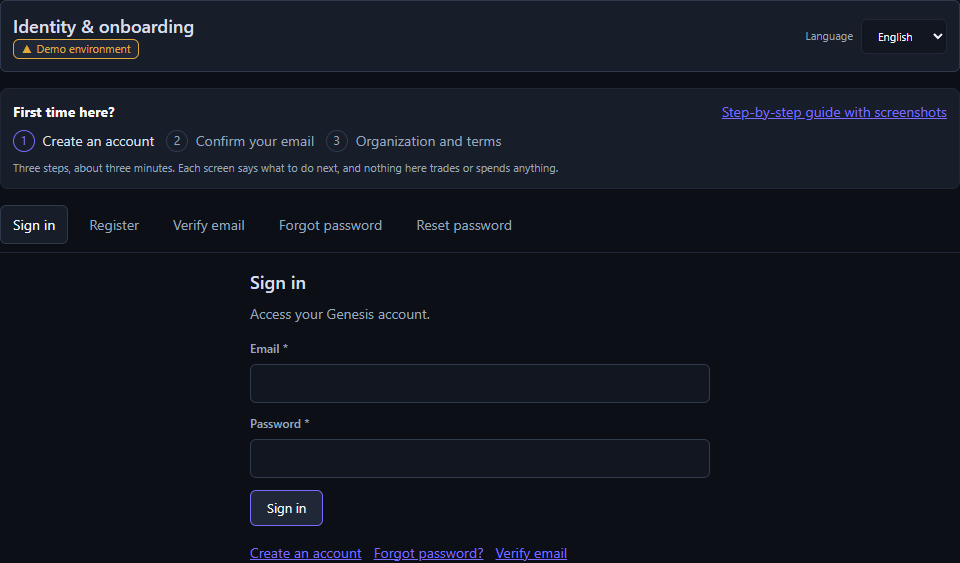
app.nektrade.com opens on the sign-in screen. You have no account yet, so press the “Register” tab at the top — or the “Create an account” link below the form.
The language switch is right there, top right: Russian or English. Your choice is remembered.
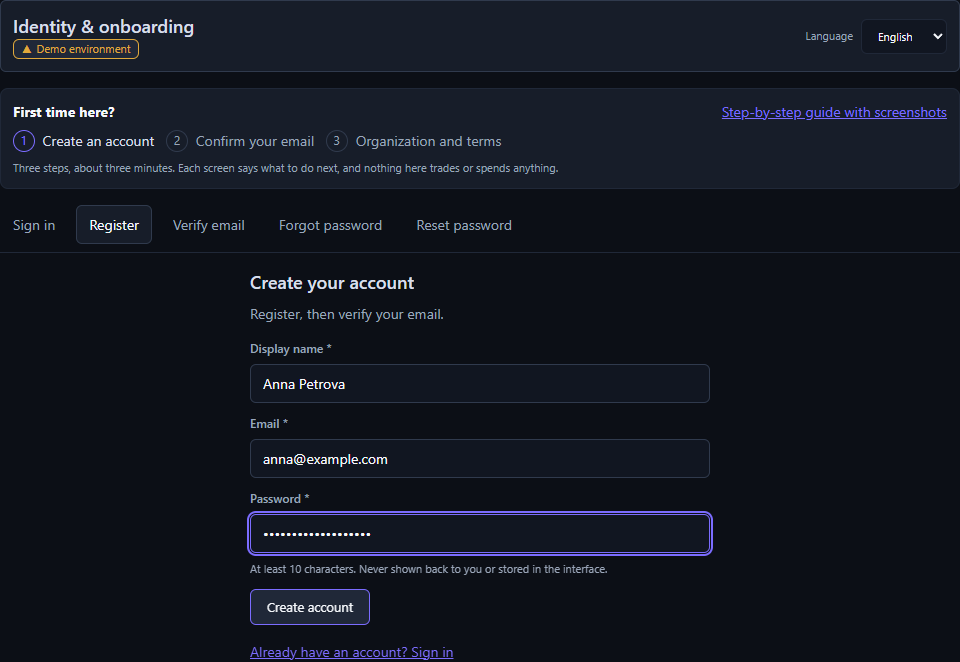
2. Fill in three fields
Display name — what to call you. Email — a real one: the confirmation goes there, and without it the account stays inactive. Password — at least ten characters.
The password is never shown back to you and is not kept in the interface. Press “Create account”.
If the password field is highlighted, it is still under ten characters — the button stays disabled until then.
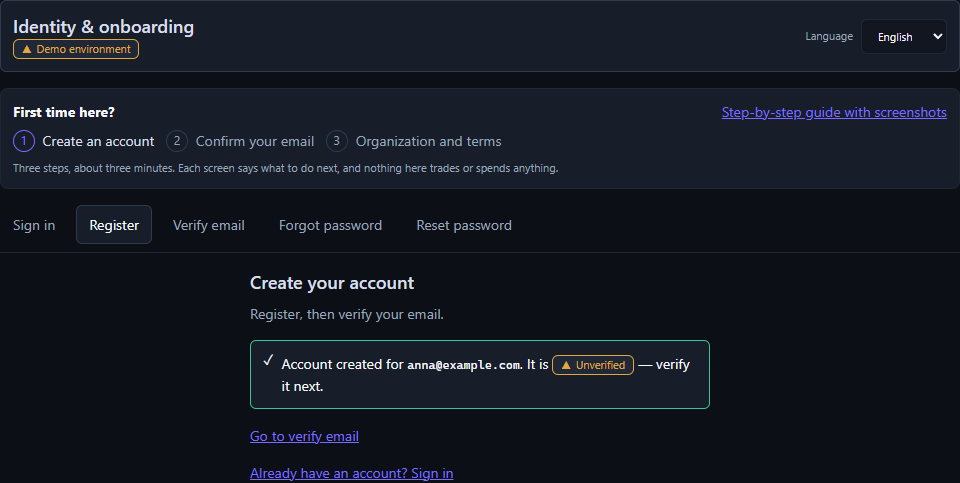
3. Account created, email sent
A confirmation appears with your address and an “Unverified” mark. That is expected: the address still has to be confirmed.
At this moment an email from “Genesis” is on its way to that address.
4. Find the email
The subject is “Confirm your Genesis email”. Inside there is a blue “Confirm email” button, the same link as text below it, and under that a confirmation code in case the link will not open.
Press the button. The app opens and confirms the address by itself — there is nothing further to press.
The link and the code last 24 hours and work once. No email after a couple of minutes? Check the spam folder.
5. If the link would not open, use the code
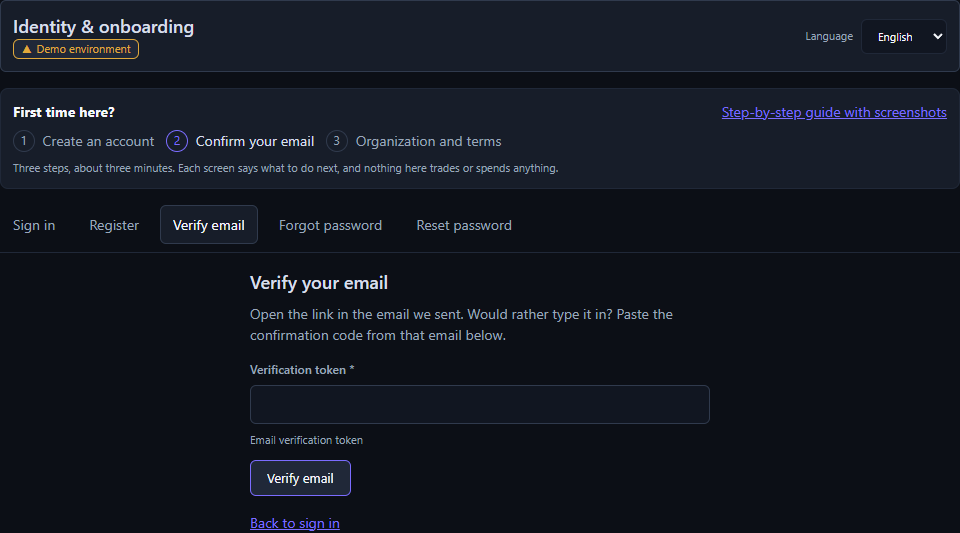
The “Verify email” screen has a field for the code. Copy it from the email, paste it in and press “Verify email”.
Already signed in and the email is not to hand? The same screen has a “Send a new token” button — a fresh email arrives and the old one stops working.
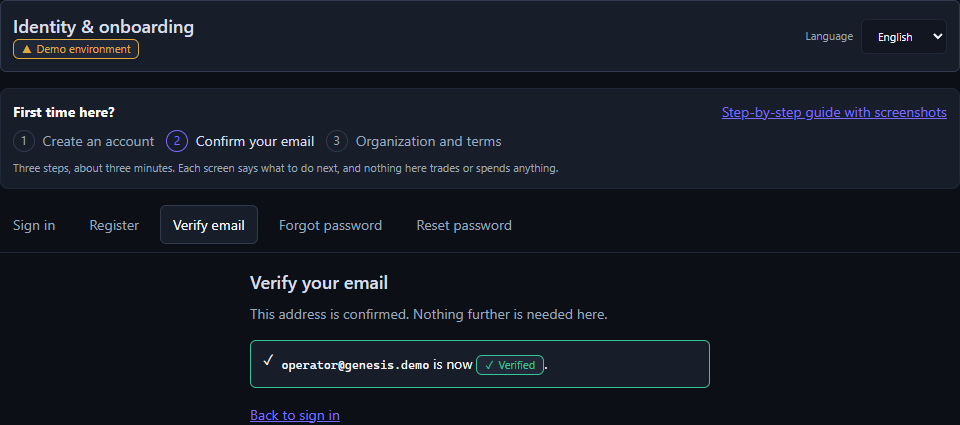
6. Address confirmed
The screen shows your address with a green “Verified” mark. The form disappears — nothing further is needed here.
Now sign in: the “Sign in” tab, your email and your password.
7. The setup checklist
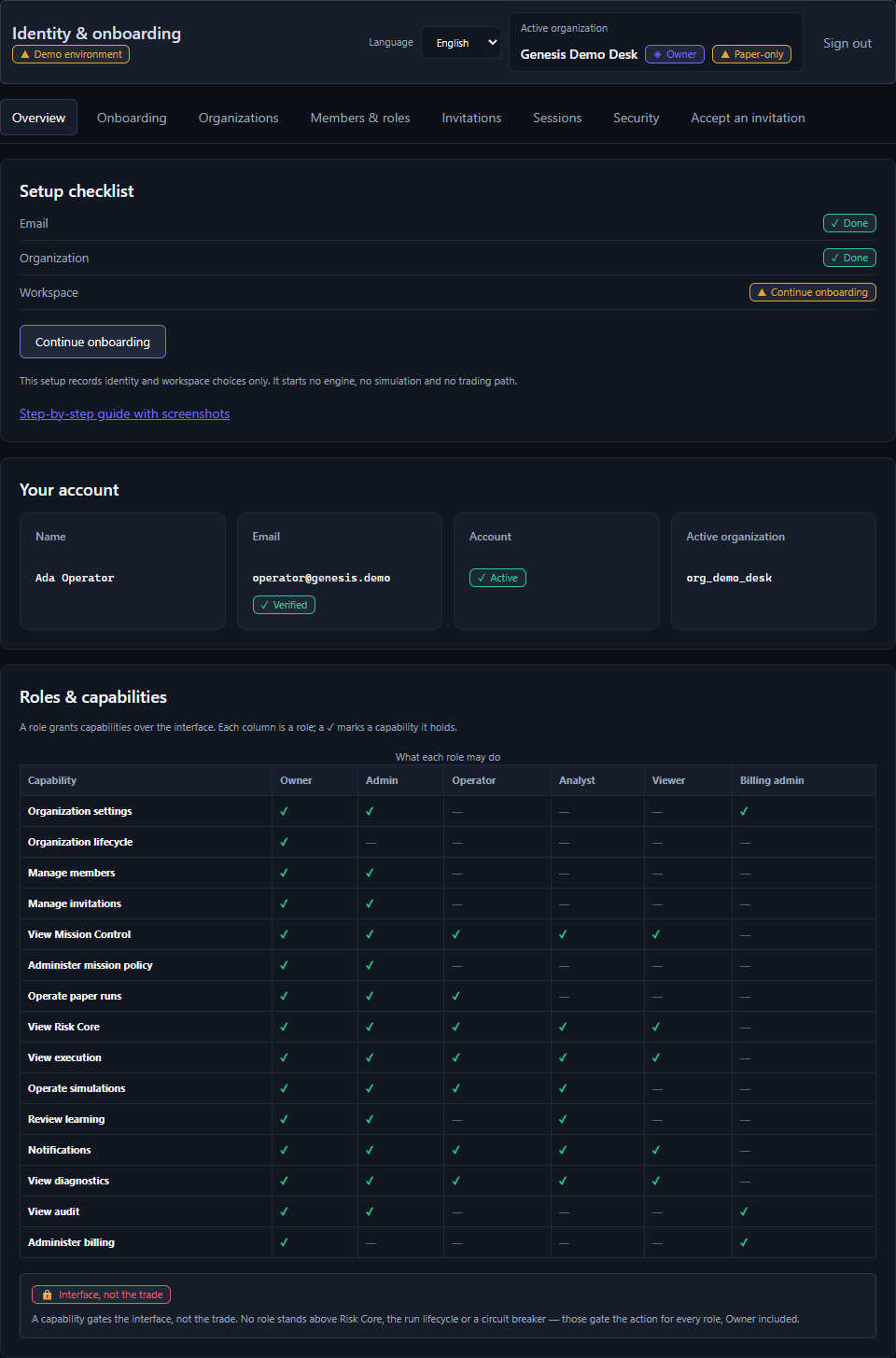
After signing in you land on “Overview” with three lines: Email, Organization, Workspace. The first is already ticked.
The main button at the bottom always shows the next unfinished item. Right now that is “Create an organization”.
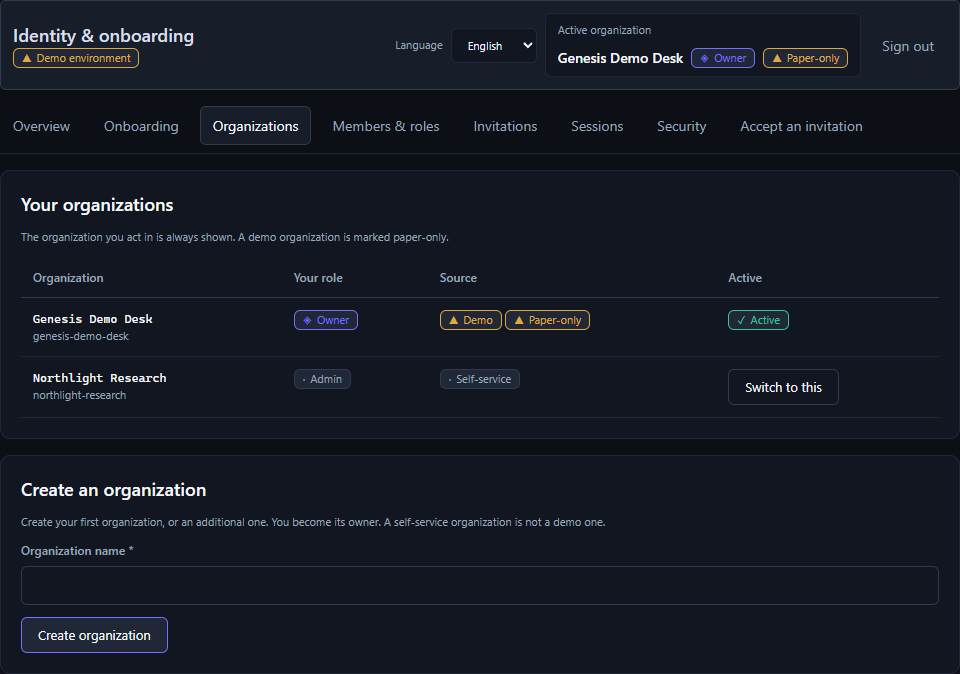
8. Create an organization
An organization is your space: the account, the settings, the members. A name is enough; everything else can change later.
Whoever creates it becomes the owner. You can invite other people afterwards, on the “Invitations” tab.
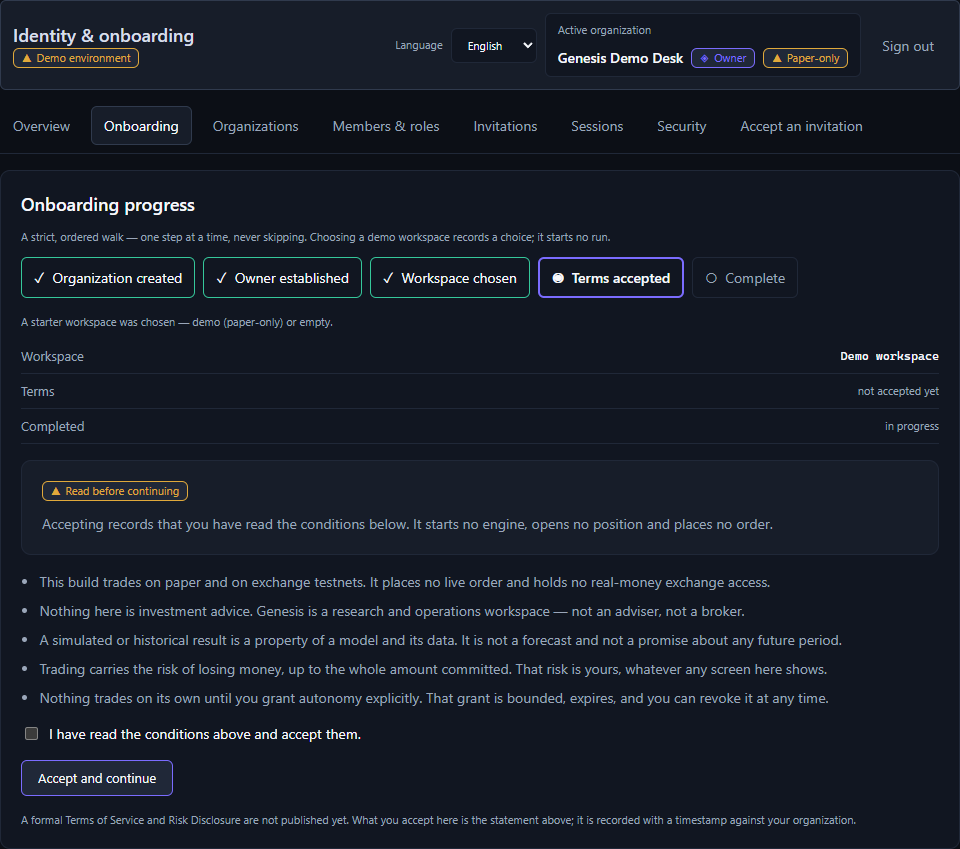
9. Read the conditions and finish
The “Onboarding” tab shows the whole rail: finished steps are ticked, the current one is highlighted. Choose a starter workspace — demo (paper-only) or empty.
Then read the conditions: what the system is, what it is not, and what risk you are taking. Tick the box and press “Accept and continue”.
Until you explicitly grant autonomy, nothing trades on its own — not one order without your decision.
10. Done
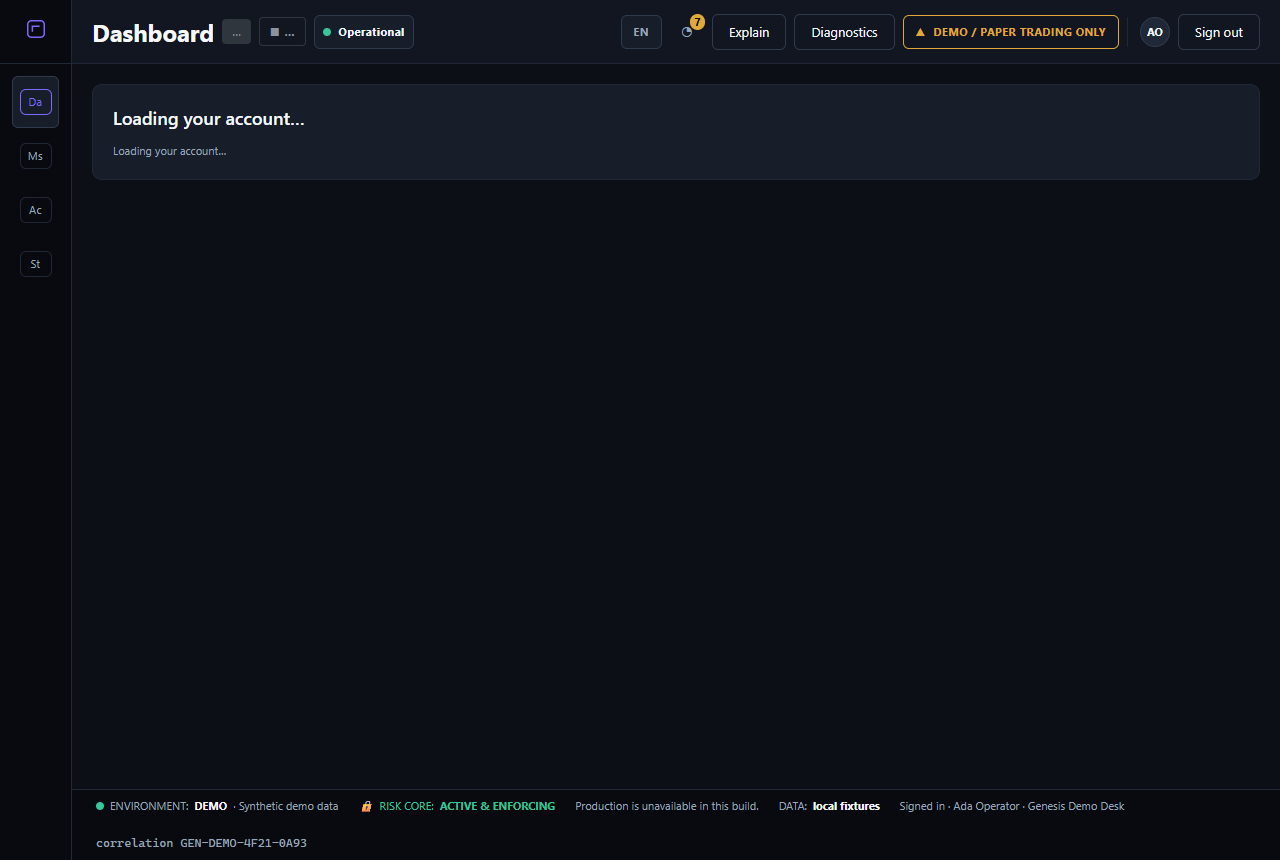
The Dashboard opens: your account, the latest trades, the risk state. Every other section is reachable from here.
If anything stops the system from working, it says so itself — on the dashboard, in words rather than an error code.
If something goes wrong
The email did not arrive
Check the spam folder. If it is not there either, sign in, open “Verify email” and press “Send a new token”. A fresh email arrives and the previous one stops working.
The link says the token could not be confirmed
Most often that means the address is already confirmed — the link works once. Try simply signing in. If more than a day has passed, the link has expired: ask for a new email.
Forgotten password
On the sign-in screen: “Forgot password?”. Enter your address and an email arrives with a link and a code. The screen answers the same whether or not that account exists, so it never tells a stranger who is registered here.
The page looks odd — the words are wrong
Most likely your browser is translating the page itself. There is a translate icon in the address bar — choose “Never translate this site”. The interface language is switched inside the app, top right.